

Choose an automation from the library
What the sections mean, what “ready” and “needs a connection” check, and how a recommendation is chosen.
On this page
Starter packages
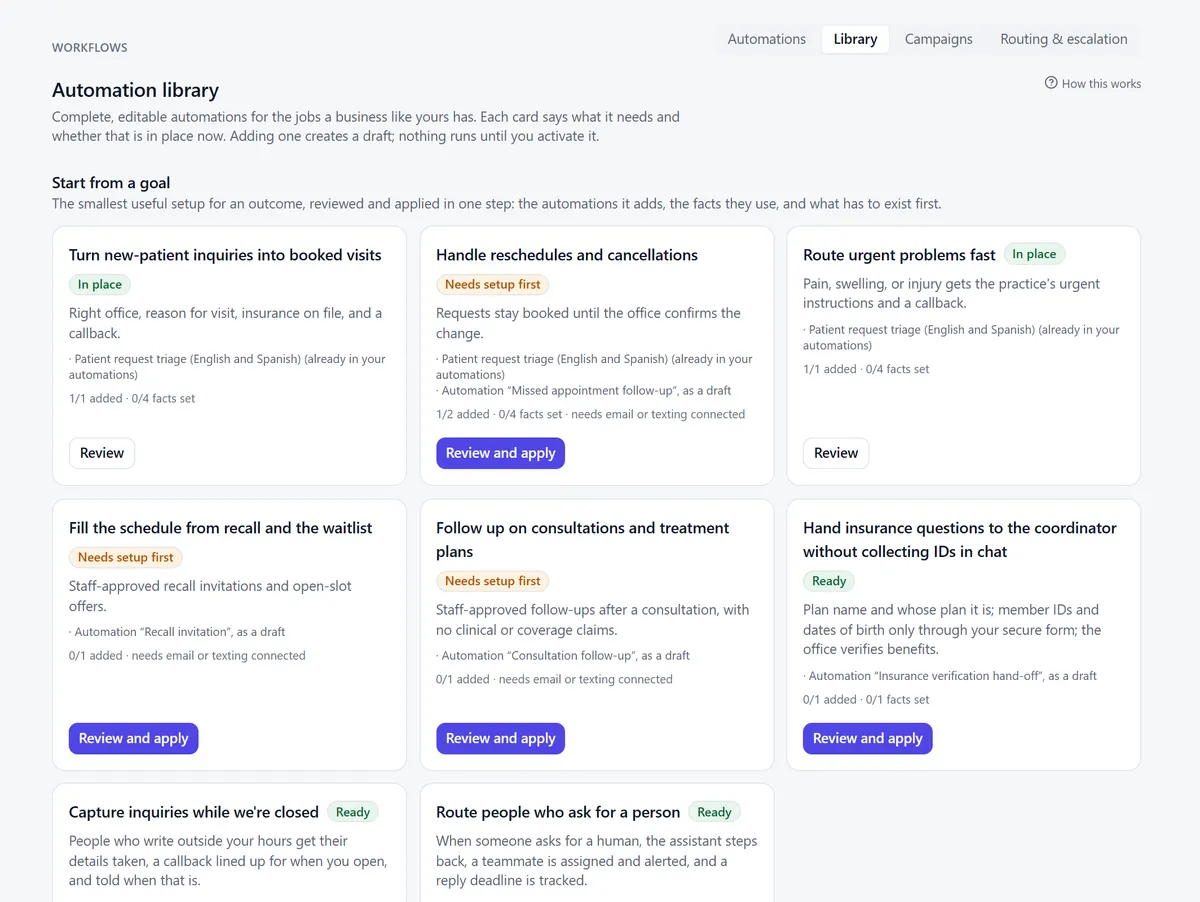
- Open Automations → Library. “Start from a goal” lists starter packages: the smallest setup for an outcome, with the automations it adds, the facts they use, and what has to exist first. Open one to review and apply it in a single step; the facts are saved, the automations are added as drafts, and the ready ones are turned on only if you tick the box. “Recently used” lists the automations you added that ran in the last 30 days. Where the automations need them, a package can also set your hours (only while none are set) and add common visit types. Links the business research found on your website start filled in, marked with the page they came from. Each part is reported on its own, and coming back shows what is already done.
Recommended, featured, and ready
- “Recommended for your business” is a short list computed from your setup: your industry, what is connected, which facts are set, and what no automation covers yet. Every recommendation says why.
- “Featured” is ReplyTurbine's curation for businesses like yours. It is a choice, not a ranking: nothing here is based on other customers' results.
- “Ready to use” means everything the automation requires is in place. “Needs a connection first” names what is missing (for example email or texting for messages that go out later, or online booking for an automation that books). Optional facts, like your review link or urgent-care instructions, are listed on the card so you can confirm them.
Before you add one
- Open a card for the steps in order, a sample conversation with example answers, what the automation may do and who decides (your action policies, the channel's draft-or-send setting), the data it uses, and when it stops.
- On a template's page, “Run a real simulation” runs it against your own hours, offices, service areas, and policies with example answers; nothing is sent, booked, or kept. “Add and turn on” adds it and starts it in one step when everything it needs is in place; otherwise “Add as draft” creates your copy to edit first. “Adapt with AI” changes the template before you add it: describe one change at a time (“route to the north office”, “follow up after 2 days”), keep or drop each one after seeing it, then add the adapted version, which is always added as a draft.
- If two automations would both ask questions when the same inquiry arrives, the card says so. For any one conversation only the more specific one (the one with more conditions) runs; the other is recorded as skipped in its history.
Good to know
- Templates from other industries are under “From other industries”. Their questions and wording are written for that industry; adapt them before activating.
Was this helpful?
Still stuck? Talk to us, or see what changed lately.