

Front desk: the day on one screen
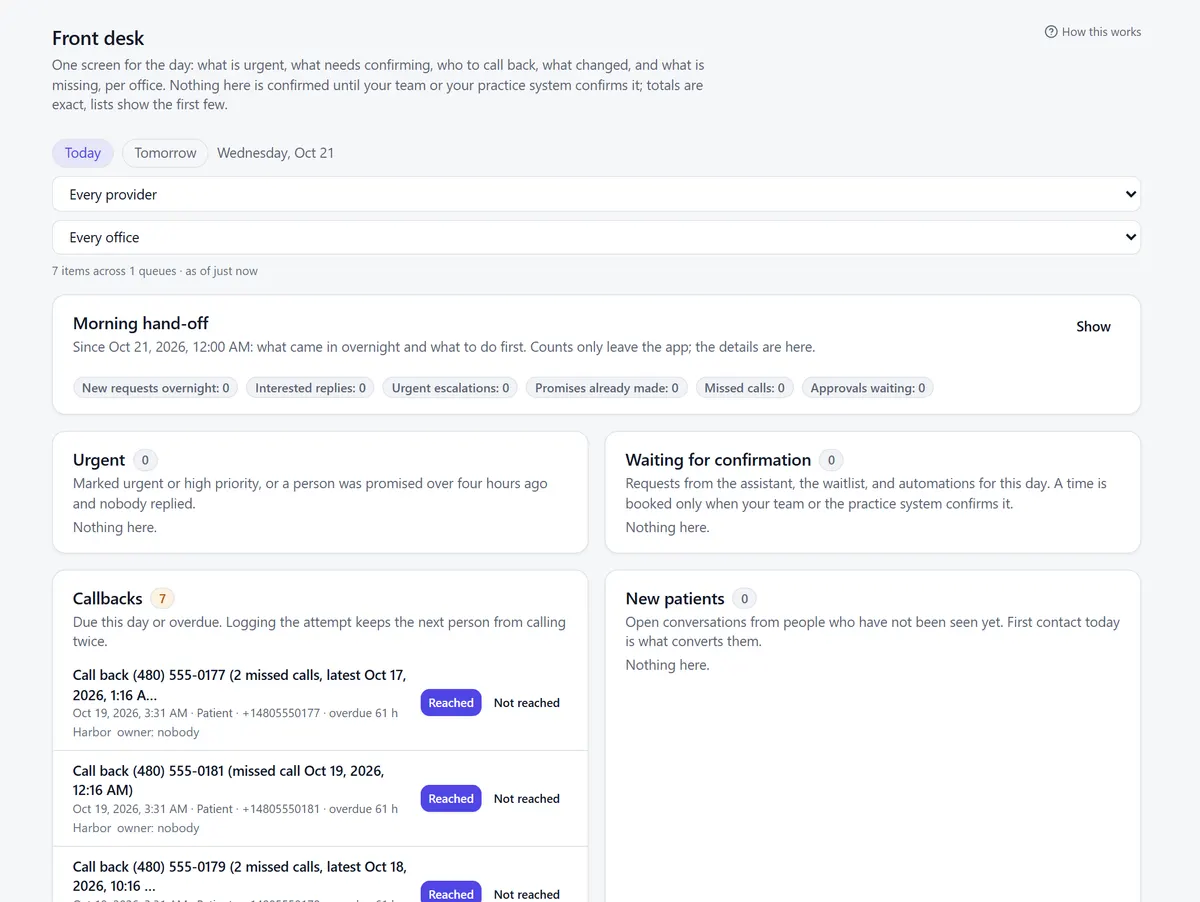
Today or tomorrow, per office: urgent items, requests to confirm, callbacks, recalls, and waitlist openings with their next actions, and the morning hand-off.
On this page
The day and its queues
- Front desk shows one local day (Today or Tomorrow) for one office or all of them. Day boundaries follow your workspace time zone, including daylight-saving days. Every queue shows its exact total; the list shows the first few, and “All N” opens that queue on its own, 25 at a time. Choose a provider to narrow the appointment queues (requests, changes, missing details) to one chair or clinician; callbacks and urgent conversations follow too, by the person's next visit.
- Queues: Urgent (urgent or high priority, or a person was promised over four hours ago with no reply), Waiting for the office to confirm, Callbacks (due this day or overdue, with the owner), New patients, Consultations, Appointment changes, Recall due, Waitlist openings, Missing details (a visit this day whose record lacks a name, phone, email, or visit type), and Connections (a practice system not syncing or a channel not flowing).
Working an item
- A request says what it is: confirmed by the source, pending in the practice system (it confirms on its own), refused by the practice system, or a request for staff to confirm. Only staff requests have Confirm and Can't do; a pending insertion is waited on, not confirmed by hand.
- Each item names the owner, the time that matters, and the exact next action: Confirm, Can't do, Reached, Left a message or No answer for a callback, Offer to waitlist for a cancelled time nobody was offered yet, They accepted by phone for an open offer, Reply now, Call, Complete the record. Open an item for the person's “Before you reply” brief and callback sheet in a side drawer; an item that is finished (confirmed, declined, booked, marked, or reached) slides out of its queue, and one still open, like a callback after No answer, stays, marked done.
- I'm calling: pressing Call on a callback shows “Maria is calling · 2 min” on that callback for everyone else on the Front desk, so two people don't ring the same person back. If someone else is already calling, Call asks “Maria is calling now. Call anyway?” first. It never stops anyone logging what happened; logging an outcome clears it, and so do 10 minutes without a new press of Call. A teammate sees it only on callbacks of the offices they work with.
The morning hand-off
- A cancelled time with a visit type can be offered to the waitlist from here. Offers go to matching patients only, expire, and the first yes is booked; a late yes is told the truth, so one opening can never become two bookings.
Callback outcomes and order
- The morning hand-off (also at the top of the page) covers what came in overnight: new requests, interested replies, urgent escalations, promises already made, approvals waiting, missed calls (with whether the callback is still open), and the first next actions. Staff get one in-app notice per day with counts only; names and messages stay in the app. Turn it off or change the hour under Settings → General. An office can have its own hour there: its hand-off then covers that office alone, and the workspace's hour covers the rest.
- Reached on a callback says what happened: Reached, booked; Reached, not booked (with an optional reason); or Reached, nothing needed. Not booked can open one gentle callback in 3 days. After No answer or Left a message, Text them too sends one short text with your office's name (and your booking link when the booking page is on), with the same consent, quiet-hours, and opt-out checks as any text.
Day notes and Confirm tomorrow
- Callbacks are in Call these first order: urgent ones, then first-time callers, people with a visit in the next 2 days, and people who called 2 or more times, then the rest, most overdue first in each. A chip and a Why first? line say why. Calls → Needs a callback and Follow-ups → Callbacks use the same order.
- Day notes: short office notes for one day, like who's out or what's down. Up to five a day, for one office or every office, and they can repeat weekly. A note can link a patient; staff only. Notes end after their day and are never shown to the assistant or to patients.
- Note for tomorrow: in Before you leave, leave a note for the next working day. The morning hand-off shows it.
Keyboard
- Confirm tomorrow: the next working day's patients who haven't said they're coming, with the number to call and the texts already sent. Mark Texted, Left message, Talked: coming, Talked: wants to move, or Couldn't reach. Talked: coming is the office's note, not the patient's own confirmation. Text again sends one fixed text per visit, never within 4 hours of another text.
- Keyboard: j and k move between rows; Enter or O opens one; Space peeks at the patient; C confirms, X is Can't do, R goes to Reached (pick booked, not booked, or nothing needed), L logs Left a message, N logs No answer. The bar under the header counts each part of the page and jumps to it.
- Privacy view, for a screen people at the counter can see: press Shift P, or choose Turn on privacy view in the account menu (or the eye button beside Help and tour). Names show as initials and what people wrote shows as “Message hidden” on the Front desk, the lobby, the Morning huddle, the Overview, the inbox list, and the patient peek; the tab title drops the name too. It stays on in this browser, even after signing out, until someone presses Turn off in the strip under the header. It only changes what is shown: who can open what stays the same.
Good to know
- Nothing on this page is confirmed until your team or your practice system confirms it. Totals are counted, not list lengths.
- The home screen's “What to do next” lists each conversation once with everything it needs (for example “Reply drafted, 1 approval waiting” or “Waiting on us”), most pressing first; its count is the number of rows. Items with no conversation, such as a callback for a caller or a connection problem, have a row of their own.
- The home screen's “What to do next” has Everyone and Mine: Mine keeps only items you own (conversations, requests, callbacks, follow-ups, leads, and approvals assigned to you).
- The Overview is titled with the day and one line counted from its tiles. It starts with the cards for your role: the front desk sees the tiles, What to do next, and Recent conversations; an admin also sees Offices today, what was handled, and Who answers; the owner sees everything. Customize on the Overview hides, shows, and reorders the cards for you alone, and Back to the usual returns to your role's cards.
- Text them too, and every other text from the Front desk, needs your own texting account, which is in testing.
- At a dental practice the Front desk also has the Lobby, Insurance to check, and Lab cases cards; each has its own article.
- In the Morning huddle, day notes are printed, but a note that links a patient stays off the printed sheet while Print initials only is on. When a booked-hours goal is set, the Hours booked tile shows it.
- Show on a screen (Morning huddle) opens the huddle for a break-room TV: large type, initials only whatever the Privacy view says, no visit types, notes about a patient, dollar figures, or links, and the office's win line and team goal at the top. It refreshes every 5 minutes and says when. It needs a signed-in teammate; if your workspace signs people out after inactivity (Settings → Data & security), the screen goes blank after that time without use.
Was this helpful?
Still stuck? Talk to us, or see what changed lately.