

People: roles, the brief, and saved views
What a record tells you before you reply, how roles are derived, and how saved views and plain-language requests turn into visible rules.
On this page
Roles
- Every person has a role in your words: prospect, your customer term (patient, client, borrower), homeowner, guardian, referral partner, vendor, or plain contact. It is derived from the records (a confirmed appointment, a won inquiry, a file role) and never renames everyone; pick a role on the record when the derivation is wrong, and it is remembered.
Before you reply
- “Before you reply” sits at the top of a record and in the conversation side panel: why they're in touch, who you're talking to (what is verified, and whether this channel is authenticated), what they're waiting for, what we promised, the owner, upcoming appointments (confirmed by the source, pending insertion, or a request), open requests and inquiries, follow-up campaigns, preferences and consent, and the next suggested action. Every line links to the record it comes from and says whether it is from today, this week, or older. Nothing is generated.
- When the identity on a channel is not confirmed, the brief says so. A verified phone or email on the record does not verify the person writing now; a relative who shares a phone has their own record and never appears in someone else's brief.
- Household and authorized contacts: link a parent, guardian, spouse, caregiver, or billing contact to a record and say what they may be contacted about (scheduling, reminders, billing, treatment details). Both records stay separate with their own consent and history; the brief names who may speak for whom (with the contact's number) and warns when nothing is recorded; the callback sheet lists each authorized contact and, for a person with no number of their own, says to call that contact for scheduling only. Automated messages still go only to the person they are about, never to a relative's number.
Callbacks
- “Prepare a callback” rearranges the brief for a phone call (who, before you dial, why they're in touch, what they're waiting for, what was promised, open items, details to collect, suggested next step) and copies as text.
- “Summarize their history” and “Draft a callback script” have the AI model write from the brief's own facts only. Every line links the records it rests on, and a line that doesn't rest on them is left out. Without the AI model, the same facts are arranged without rewording, and the panel says so.
Saved views
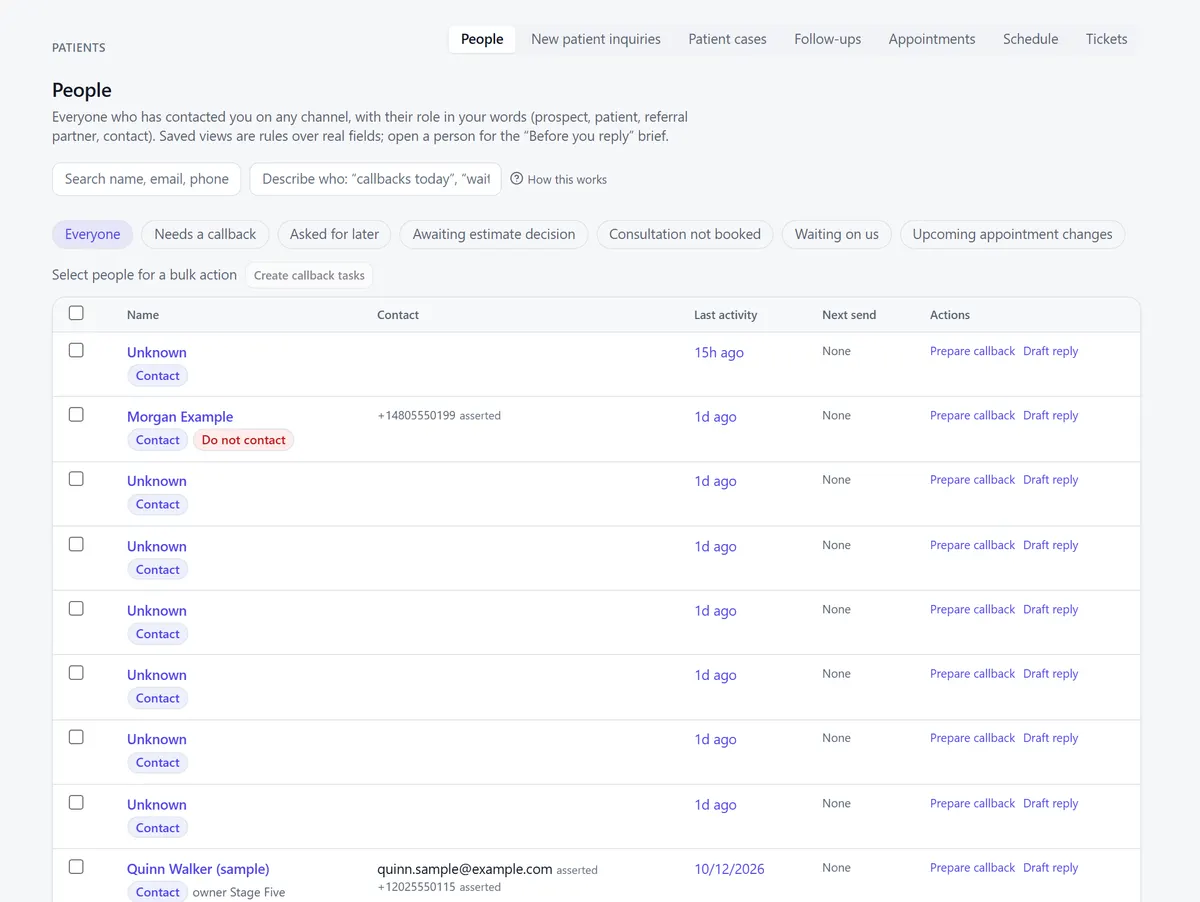
- People → saved views: Needs a callback, Asked for later, Awaiting estimate decision, Consultation not booked, Waiting on us, Upcoming appointment changes. Each shows its rules over real fields; some take a window (today, tomorrow, 7 days). Type a request such as “callbacks today” or “waiting on us” and it resolves into one of these views, saying which rules it applied; if it cannot match, it says so and shows everyone.
- “Asked for later” includes people who asked in their own words (“call me next week”, or in Spanish “llámeme la próxima semana”): their check-back date is set from the message, never over a date your team set, and the list shows what they wrote. Your industry's usual record fields (for example a dental practice's insurance carrier and who referred them) are set up for you; changing your industry offers the new one's. The list shows 100 people per page; Previous and Next keep the view, window, and search. Row actions open the callback sheet or the last conversation; the next send column shows the follow-up campaign step coming up. Select people to create callback tasks in one step after a preview of who gets one; people who asked not to be contacted are skipped. Nothing on this page sends a message or enrolls anyone.
The record, peek, and New text
- A record opens with the person's name, phone, and email (each one click to copy) and chips for their office, next visit, texts, and household, each a link. The action bar has Text, Call, Email, Book, Note, Open a case, and More; details edit in place and save one at a time. Click a name on People, Calls, or Follow-ups, or press Space on a row, to peek at the record in a side panel without leaving the list.
- New text, on a record, as a row action on People, or under New beside Search (c opens it when single-key shortcuts are on), starts a text to anyone on record from their office's number. It shows the consent line and how many parts the text takes, and says why when a text can't go (no consent, STOP, asked not to be texted, no phone, no texting number). During quiet hours it waits until they end. New also has Log a call and Add a follow-up; on a phone it is the + above the tab bar.
Good to know
- In health and financial workspaces, message text is kept out of the list's preview column.
Was this helpful?
Still stuck? Talk to us, or see what changed lately.